

By default Context7 On-Premise runs as a single container. It stores everything on a local volume: a SQLite database for configuration and metadata, and a LanceDB index for embeddings. This is simple to operate but limits you to one instance, since SQLite does not support concurrent writers across containers.
To run multiple replicas behind a load balancer, move that state to PostgreSQL. Relational data goes to Postgres, and vectors go to Postgres too via the pgvector extension. Once state is external, every replica is stateless and interchangeable, and you can scale horizontally. Postgres is the only external dependency, there is no separate vector database or object storage to run.
If you already run Milvus or Zilliz Cloud, you can send vectors there instead of pgvector. See Vector stores for all the options; this page uses the default pgvector setup throughout.
You only need this if a single container can no longer handle your query or indexing load. Most deployments run fine on one container with a persistent volume. See Docker and Kubernetes for the standard single-container setup.
Architecture#
Every replica runs the full application (REST API, MCP endpoint, and parser) and is interchangeable. All shared state lives in PostgreSQL, so a load balancer can spread traffic across any number of replicas.
Replicas coordinate through Postgres:
- They take indexing jobs from a shared queue.
- Jobs that must run once (usage reporting, scheduled library updates, GitOps sync) run on one replica, under a Postgres lock.
- They accept each other’s signed session tokens.
See How it behaves for the details.
What you need#
- A PostgreSQL database (managed or self-hosted) with the pgvector extension, reachable from every replica. Managed Postgres such as RDS, Cloud SQL, and Azure support pgvector; for self-hosted use the
pgvector/pgvectorimage. To keep vectors in Milvus or Zilliz Cloud instead, see Vector stores. - A load balancer in front of the replicas.
The embedded SQLite database is not used once DATABASE_URL is set. The embedded LanceDB index is also not used, unless you set VECTOR_STORE=lancedb.
Configuration#
Set the same values on every replica. Presence of DATABASE_URL is what switches the store from SQLite to Postgres and vectors to pgvector.
| Variable | Required | Description |
|---|---|---|
DATABASE_URL | Yes | PostgreSQL connection string, for example postgres://user:pass@host:5432/context7. Enables multi-replica mode; vectors go to pgvector in this database. |
ENCRYPTION_KEY | Yes | 64 hex characters, shared by all replicas so they can decrypt the same stored credentials and validate each other’s session tokens. Generate with openssl rand -hex 32. |
PG_POOL_MAX | No | Size of the main PostgreSQL connection pool per replica. Defaults to 10. |
PG_VECTOR_POOL_MAX | No | Size of the separate pgvector connection pool per replica. Defaults to 5. Each replica can open up to PG_POOL_MAX + PG_VECTOR_POOL_MAX connections. |
ENCRYPTION_KEY must be identical on every replica and must stay stable. If it changes, stored credentials can no longer be decrypted and all sessions are invalidated. Store it in your secret manager.
Enable it#
Provision PostgreSQL with pgvector
Context7 stores vectors with pgvector. You need PostgreSQL 13 or newer with pgvector 0.5.0 or newer (0.5.0 added the HNSW index used for similarity search).
On first boot Context7 creates its relational tables. On the first vector write, it runs CREATE EXTENSION IF NOT EXISTS vector and creates the vector tables and indexes. You just provide a database whose user is allowed to create the extension. On managed Postgres that usually means enabling pgvector for the instance first, then connecting with a privileged role.
pgvector ships with RDS and Aurora PostgreSQL. Connect as the master user (or a member of rds_superuser) and enable it:
No parameter group changes are required. See pgvector on Amazon RDS.
pgvector is supported on Cloud SQL for PostgreSQL. Connect as a user with the cloudsqlsuperuser role and enable it:
See Cloud SQL extensions.
Allowlist the extension first: add VECTOR to the azure.extensions server parameter, then connect and enable it:
Use the official image, which bundles pgvector:
For an existing server, install the extension package (apt-get install postgresql-16-pgvector on Debian/Ubuntu) or build from source, then run CREATE EXTENSION vector;. See pgvector installation. Set --shm-size at least as large as maintenance_work_mem so parallel HNSW index builds do not run out of shared memory.
Verify the installed version (must be 0.5.0 or newer):
If the application’s database user cannot run CREATE EXTENSION (common on locked-down managed instances), have a DBA run it once as a privileged role before you start Context7. Once the extension exists, the app user only needs normal table privileges.
Generate the shared secrets
Set the environment on every replica
Add DATABASE_URL and ENCRYPTION_KEY to each replica, alongside the usual LICENSE_KEY and model settings.
Point health checks at /api/ready
Configure your load balancer or orchestrator readiness check to use GET /api/ready. It returns 200 only when the replica can reach the database and its MCP bridge is up, so traffic is routed only to replicas that are ready.
Scale out
Start as many replicas as you need behind the load balancer. Every replica is identical: it serves API, MCP, and search traffic and pulls parse jobs from the shared queue, so adding replicas grows both query capacity and indexing throughput at once. Work is distributed automatically and no replica is special.
If a large re-index competes with query latency on a replica, lower Max concurrent parses (Workspace Settings › Parsing) so each replica runs fewer parses at a time, or give replicas more CPU and memory. The new value applies at once on the replica that saves it. Other replicas use it after they restart.
Docker Compose#
For evaluation and small deployments, this stack brings up Postgres (with pgvector), three app replicas, and an nginx load balancer with one command. There is no object storage to run.
Create a .env:
Create nginx.conf (round-robins across the replicas):
Create docker-compose.yml:
Then start it and open http://localhost:3000 to complete the setup wizard:
For production, point DATABASE_URL at an external managed Postgres (with pgvector) and drop the postgres service.
Kubernetes#
This assumes you created the namespace and image pull secret in the Kubernetes guide. Put the shared configuration in a Secret:
Run the app as a Deployment instead of the single-replica StatefulSet. State is external, so /data is per-pod scratch and readiness gates on /api/ready:
Reuse the Service and Ingress from the Kubernetes guide, then apply:
A Helm chart renders all of this from a few values (single replica by default, scaling.enabled=true to scale out). See Helm.
How it behaves#
- Shared work queue. All replicas pull parse jobs from the same queue in PostgreSQL, so indexing throughput scales with replica count.
- Single execution for scheduled jobs. Some jobs must run once across the fleet: the usage report, scheduled library updates, and GitOps sync. Each takes a short Postgres advisory lock when it starts, so only one replica runs it. No replica is special, so there is nothing to fail over. Built-in backups do not run in this mode; see Limitations.
- Shared parse limits. All replicas share the file and timeout limits under Workspace Settings › Parsing. Each replica reads them when its next parse starts. Max concurrent parses applies to each replica separately.
- Stateless sessions. Sessions are signed tokens, so any replica accepts a login issued by another, and logins survive restarts.
- Vectors in Postgres. Embeddings are stored with pgvector, indexed with HNSW using cosine distance. The vector dimension is taken from your embedding model on first write, so there is no manual schema setup. Switching to an embedding model with the same dimension is a re-index, not a migration. The vector tables keep the dimension they were created with, so a model with a different dimension cannot write to them: drop the
ee_vectors_*tables and re-index every library. AWS Bedrock embedding models use their own tables for each model, so this does not apply to them. To store vectors in Milvus or Zilliz Cloud instead, see Vector stores.
Migrating an existing deployment#
If you already run a single container, a built-in command copies your existing SQLite data and LanceDB vectors into PostgreSQL, so you do not have to re-index your libraries or re-embed anything. It reads the data directory from your single container and writes to the target PostgreSQL.
The admin UI shows your current storage mode and the exact migration command under Workspace Settings › Scaling:
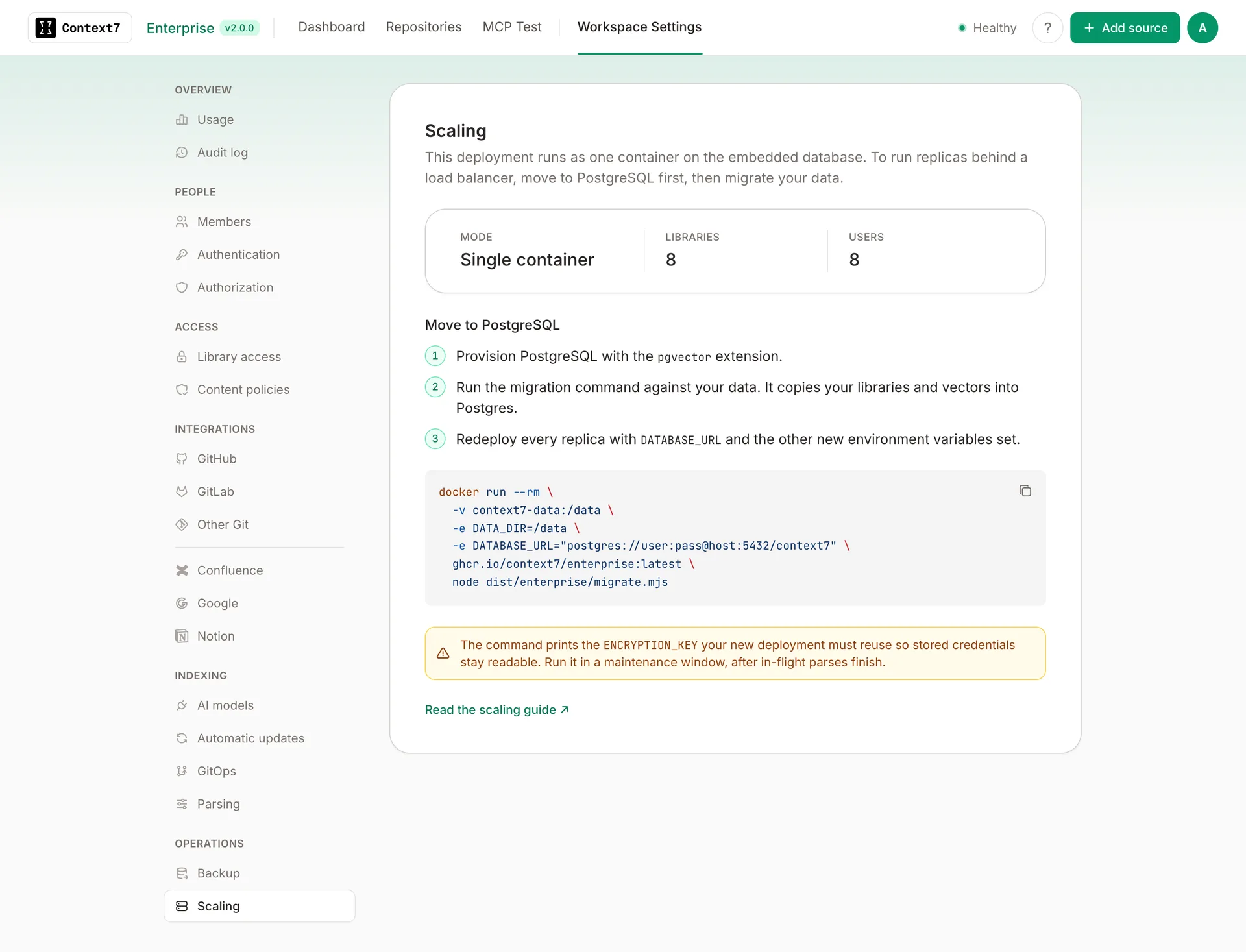
Run the migration during a maintenance window. Stop indexing and let in-flight parses finish first, then run the migration against a quiet database. In-flight parse jobs are not migrated.
Provision PostgreSQL with pgvector
Create the target PostgreSQL database with pgvector, the same way as in Enable it above. The schema, extension, and vector tables are created automatically.
Run the migration
Run the one-shot migrate command with access to your existing data directory and the target database. It creates the schema and copies your projects, pages, users, API keys, per-library access rules, SSO group memberships, settings, usage counters, and the vector index into pgvector.
Use the same volume your single container uses, so the command reads your existing database and vectors. Docker Compose adds the project name as a prefix to volume names (for example, context7_context7-data). Run docker volume ls to find the correct name.
Run it as a Job that mounts the existing data volume:
The command prints the rows and vectors copied, and the ENCRYPTION_KEY your new deployment must use.
Reuse the encryption key
Your stored credentials are encrypted with the key from the single container. Set ENCRYPTION_KEY on the new deployment to the value the migration command printed, so credentials stay readable.
Redeploy in multi-replica mode
Redeploy with DATABASE_URL and ENCRYPTION_KEY set on every replica, following the steps above. Verify at /api/health that your libraries are present, then scale up.
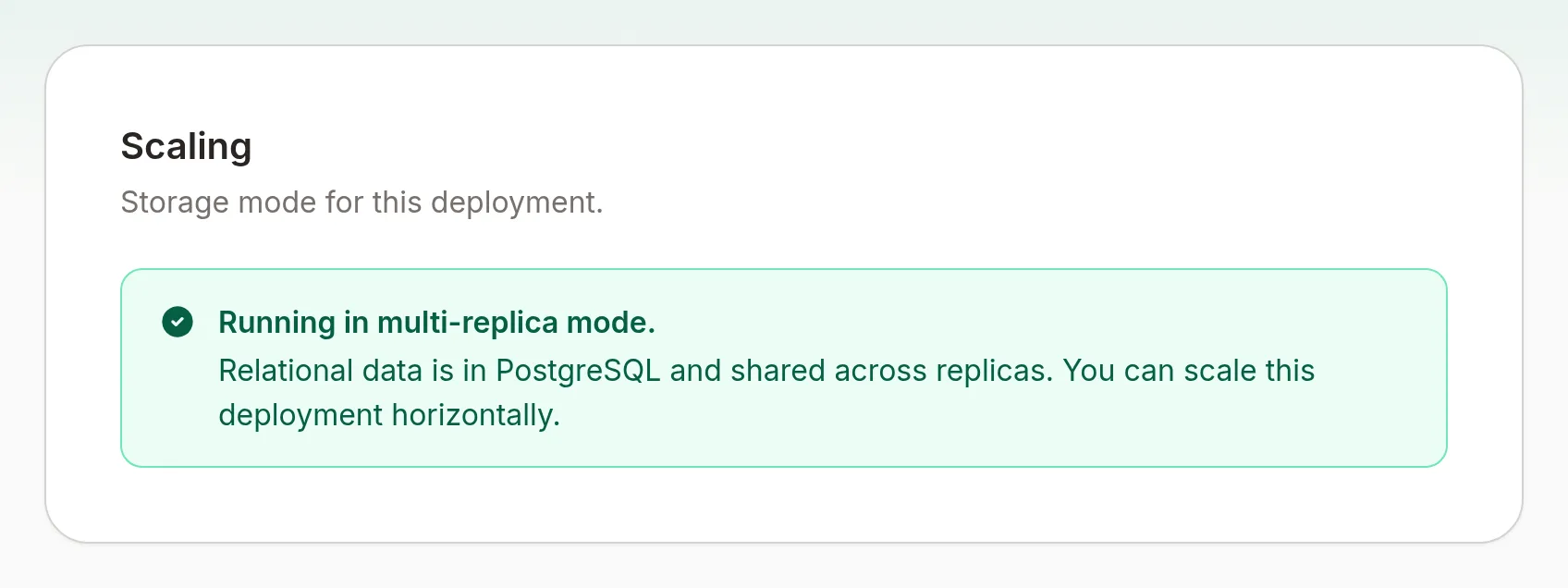
After redeploying, Workspace Settings › Scaling confirms the deployment is running in multi-replica mode:
Limitations#
- With pgvector, vector search runs in Postgres. For typical on-prem workloads this is well within reach; for a very large index, size Postgres accordingly.
- Built-in backups (scheduled and manual) are disabled whenever
DATABASE_URLis set. Back up PostgreSQL with your provider’s managed backups orpg_dump, and back up Milvus separately if you store vectors there. See Backup and Restore.