

By default, every signed-in user can query every library indexed on your instance. Library access control lets you lock specific libraries down so only the right people can reach them. This is useful when you index a repository that only one team has access to in your source control, and you want that boundary to carry over to Context7.
Access is decided per library. A library is either open to everyone or restricted to a set of principals: SSO groups, individual users, or both. Admins always have access to every library.
Group-based access relies on the group claim from your identity provider, so it works when your users sign in through SSO. See OIDC SSO, SAML SSO or Microsoft Entra SSO for setup. Microsoft Entra ID does not send the groups claim by default: add it to the app registration and grant access by group object ID, as described in Microsoft Entra SSO. For password users, grant access to individual users instead.
Manage access in one place#
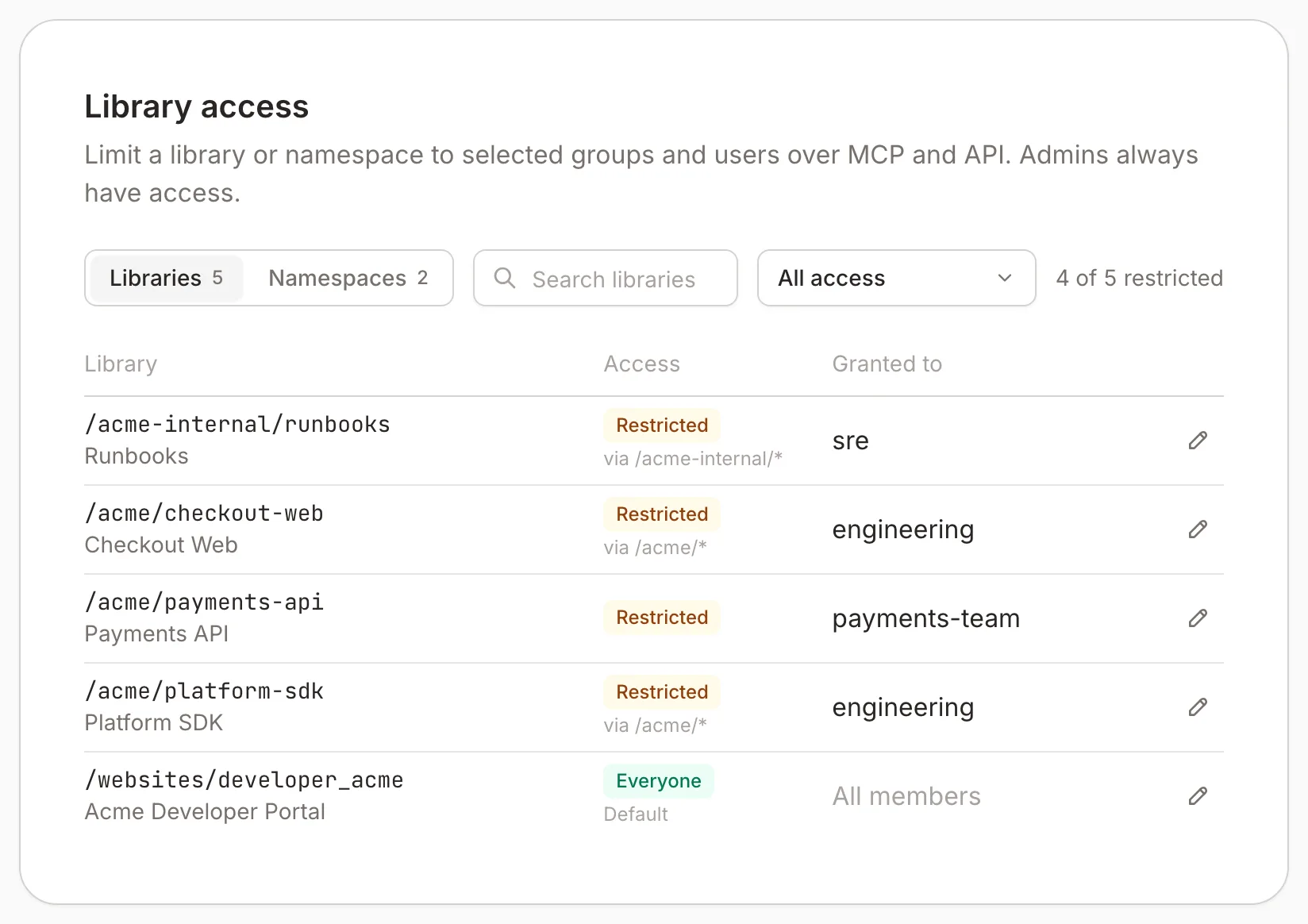
Open Workspace Settings › Library access. The Library access card has a table of every indexed library, its current access, and who can reach it. The Default access card above it holds the workspace default. Search by name, filter to restricted libraries only, and edit any library from its row.
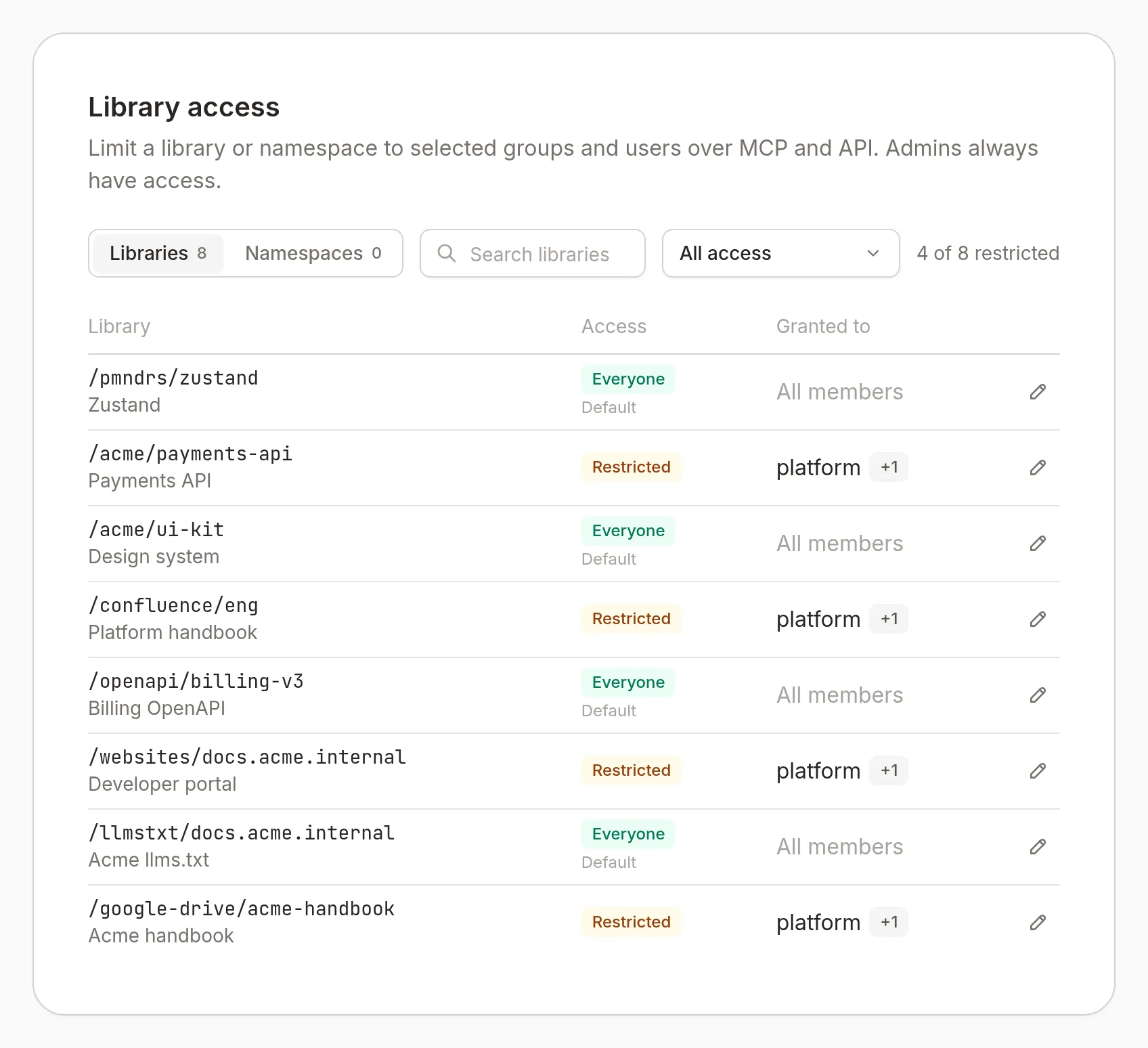
The table tells you three things at a glance:
- Access: whether the library is open to Everyone or Restricted. Libraries you have not configured follow the longest matching namespace rule and show
via <namespace>/*. Without a matching namespace rule, they follow the workspace default and show Default. - Granted to: the groups and users on a restricted library,
All memberswhen it is open, orAdmins onlywhen it is restricted but no one has been added yet. - Edit (pencil icon): opens the access editor for that library.
Restrict a library#
You can edit a library from the Edit button in the table, or from the Access field on the library’s settings page. Both use the same controls.
Switch to Restricted
Select Restricted, then add the SSO groups that should have access and any individual users you want to grant directly. Click Save changes.
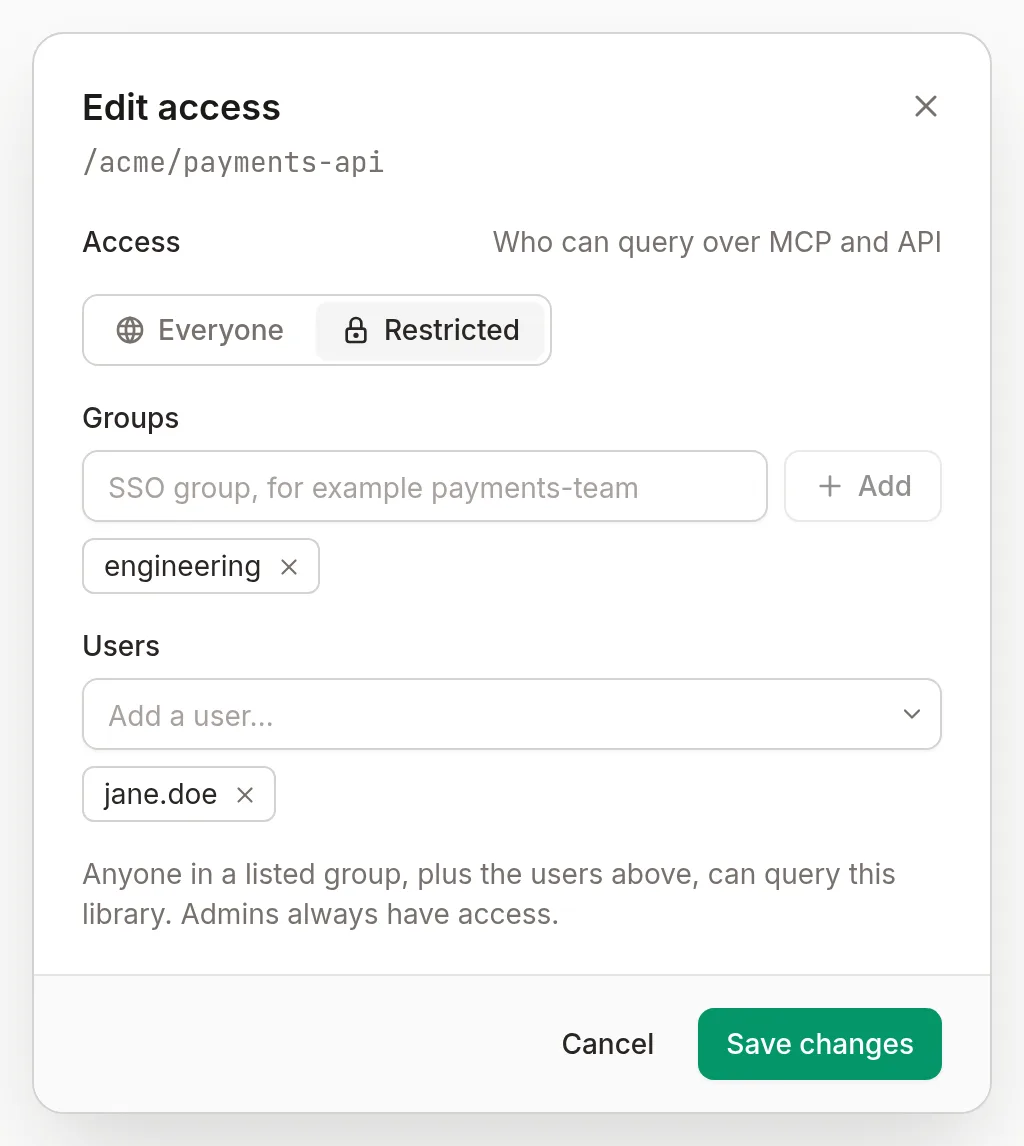
Anyone in a listed group, plus the users you added, can now query this library. Everyone else stops seeing it.
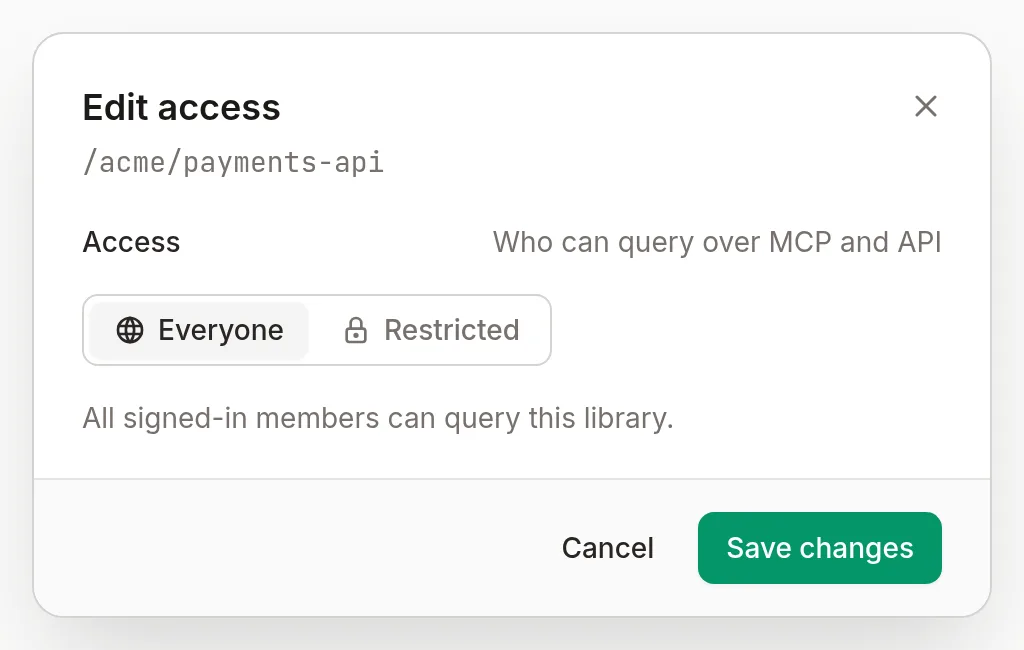
Reopen it when needed
To open a library back up to the whole workspace, set its access to Everyone.
Set the default for new libraries#
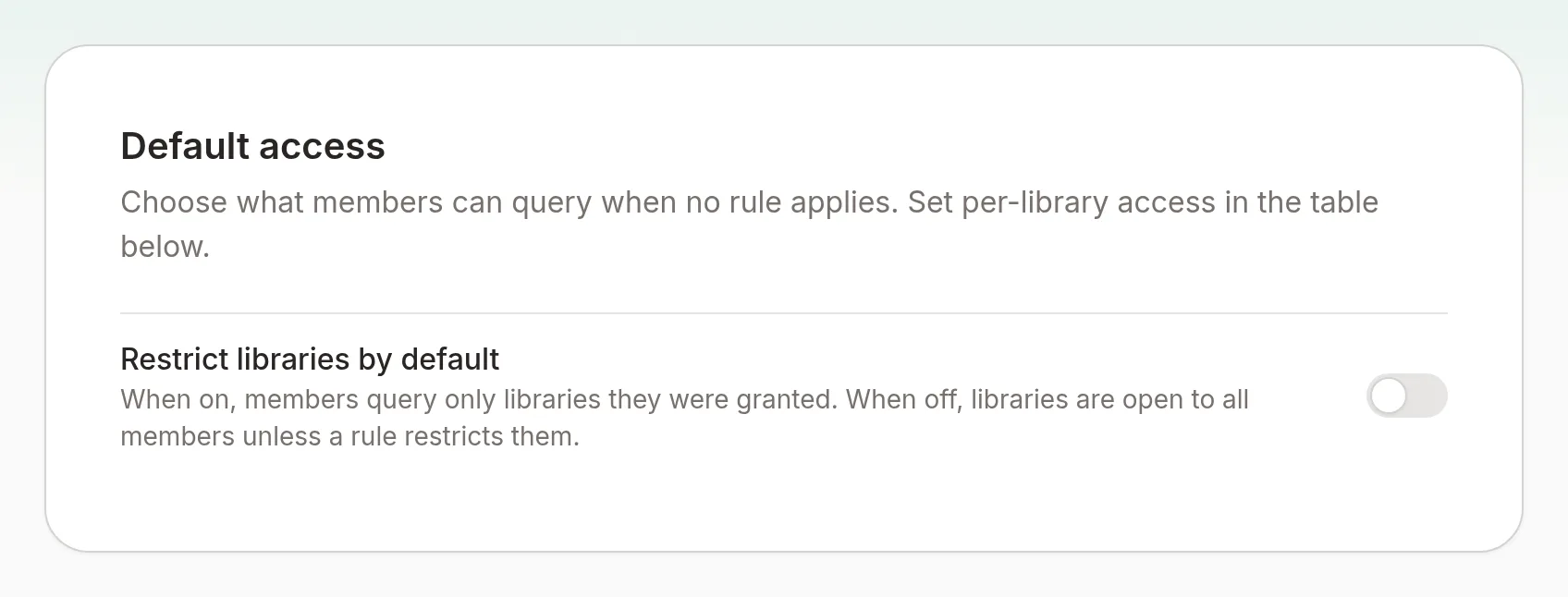
New repositories and websites are open to everyone unless you change the workspace default. Use the Restrict libraries by default toggle in the Default access card.
New Google Drive, Notion and Confluence libraries start restricted to admins, because they can hold private company documents. Grant access to the groups or users who need them from the library’s row. A connector library you add later is restricted the same way, unless the workspace default is already Restricted or a namespace rule covers it. Re-syncing a connector library never changes access you have set.
Turn the toggle on to flip your instance to deny by default. Members then see only the libraries they have been explicitly granted, and each new library stays private until you grant access to it.
Restrict a namespace#
A namespace rule covers every library under a path. Use it to control a whole organization in one step:
- In the Library Access section, switch to Namespaces.
- Choose Add rule.
- Enter a prefix, such as
/acmeor/acme/backend. - Choose Everyone or Restricted, and add groups and users as for a library.
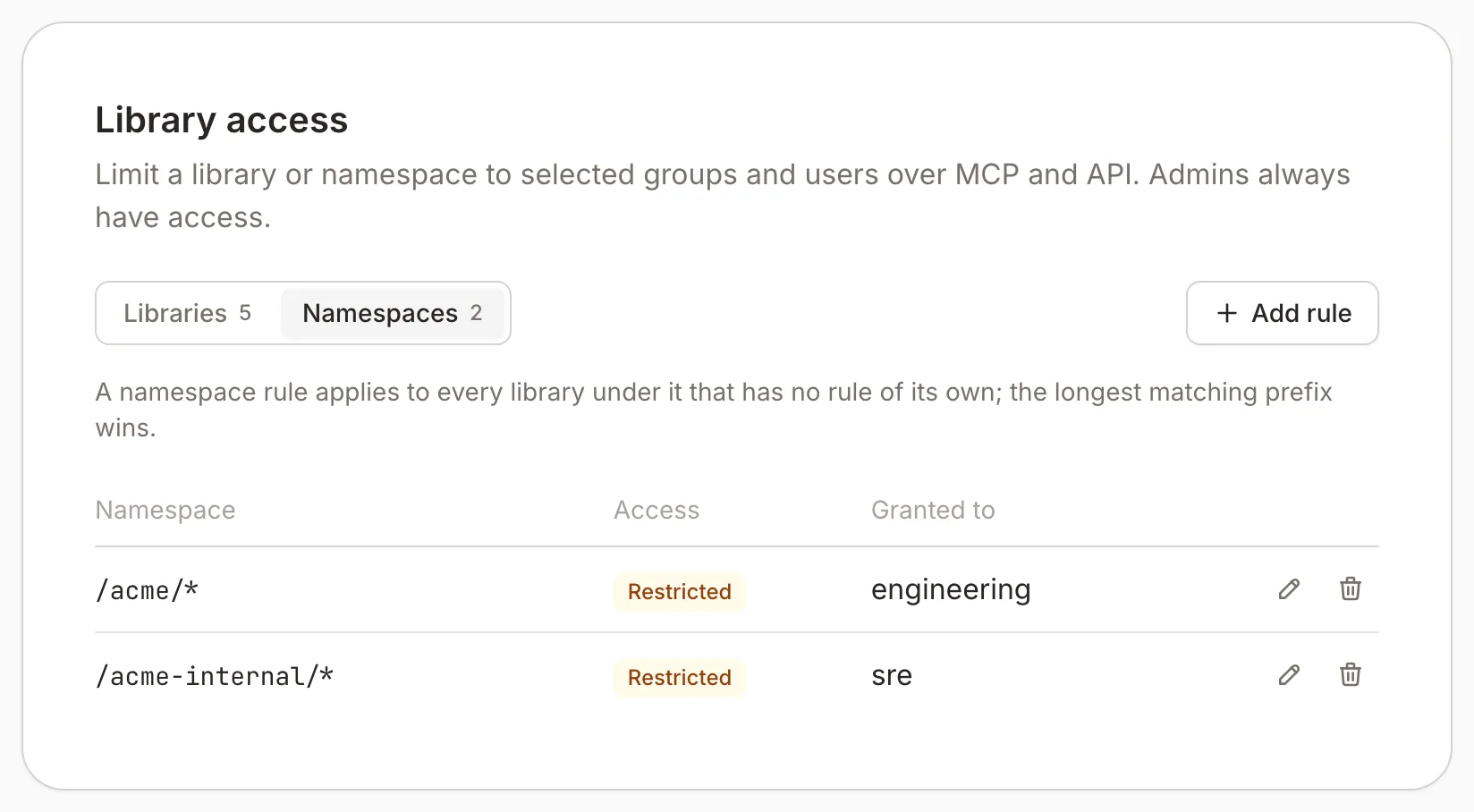
A prefix matches whole path segments: /acme covers /acme/payments, but not /acme-labs/payments.
Context7 decides each library in this order:
- The library’s own rule, if it has one.
- The namespace rule with the longest matching prefix.
- The workspace default.
In the Libraries view, a library that takes its access from a namespace rule shows the rule under its access, for example via /acme/*.
How it applies#
Access is enforced everywhere a user reaches a library:
- MCP: restricted libraries are hidden from library search results, and a documentation request for a library the user cannot access returns the same “not found” response as a library that isn’t indexed. Restricted libraries can’t be told apart from ones that don’t exist.
- API: the same filtering applies to library search and documentation requests made with a personal API key.
- Dashboard: members only see the libraries they can access in their library list.
Admins are never restricted. They see and can query every library, which is also how they manage access in the first place.
With Require MCP authentication on, these endpoints also need a session or a personal API key: library list, library details, library search, library logs, parse queue, and parse status.
With it off, they answer anonymous callers, but access rules still hide restricted libraries. A caller that sends a valid personal API key is still treated as its owner, so it sees the libraries that user can access.
Audit log#
Open Workspace Settings and go to Audit log to review library access activity. The log records:
- Changes to the workspace default, library rules, and namespace rules, with the admin who made them.
- Access denials: a documentation request over MCP, or a dashboard or
/api/projects/...request, for a library the caller cannot access. Each entry shows the user (oranonymous) and the library.
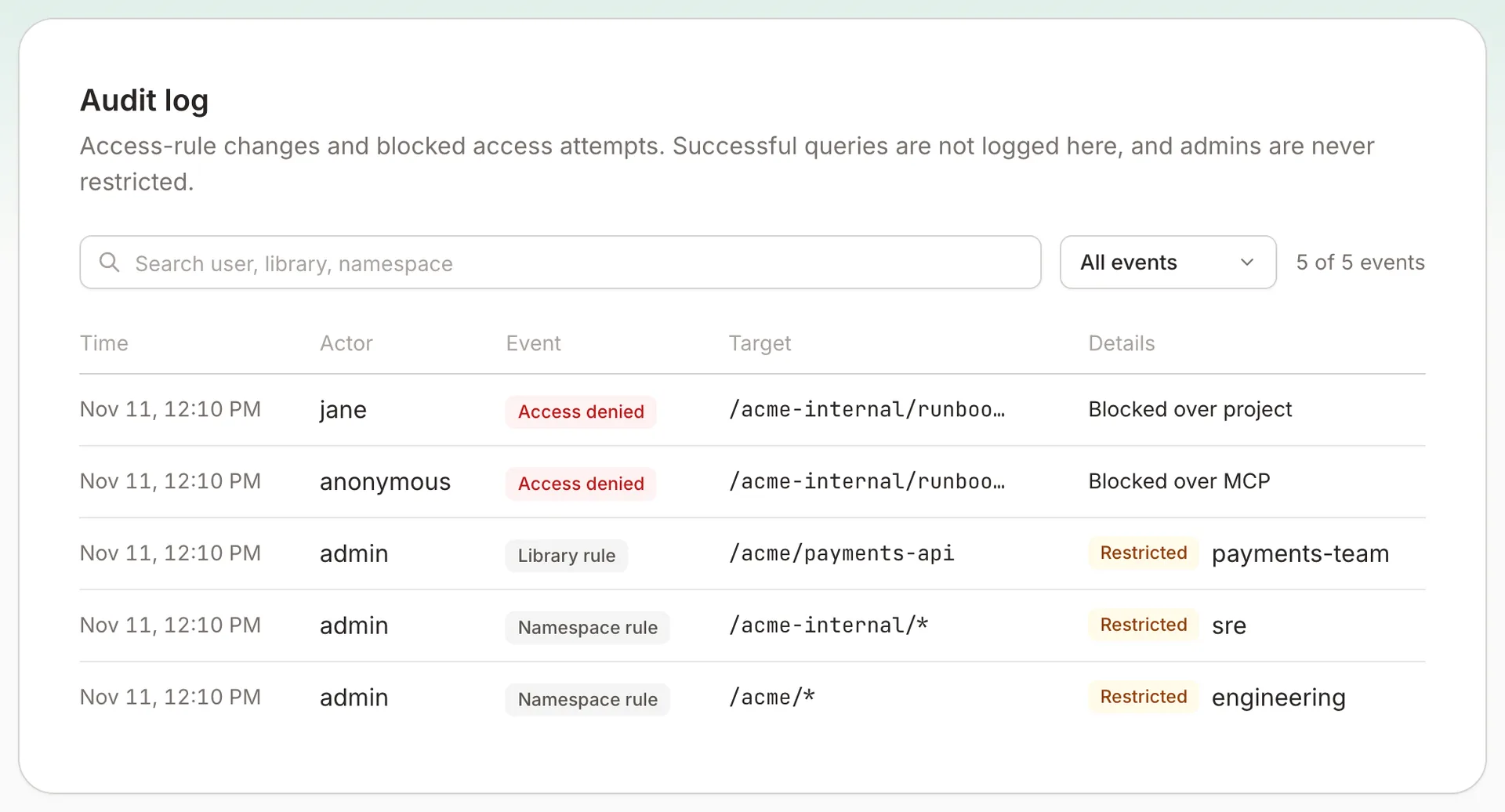
Successful queries are not logged.
- Access denials: Context7 keeps the latest 2,000 and deletes older ones.
- Rule changes: kept forever.
- The page shows the latest 200 entries.