

The on-premise API supports API keys for server-to-server and MCP access. Pass the key in the Authorization header:
The server also accepts the key in the x-api-key, context7-api-key, or context7_api_key header.
A key belongs to the user who created it and has that user’s role (admin or member). Keys have no scopes and do not expire. To stop a key from working, revoke it.
A request with an invalid or revoked key gets 401. It is not treated as an anonymous request.
Creating an API Key#
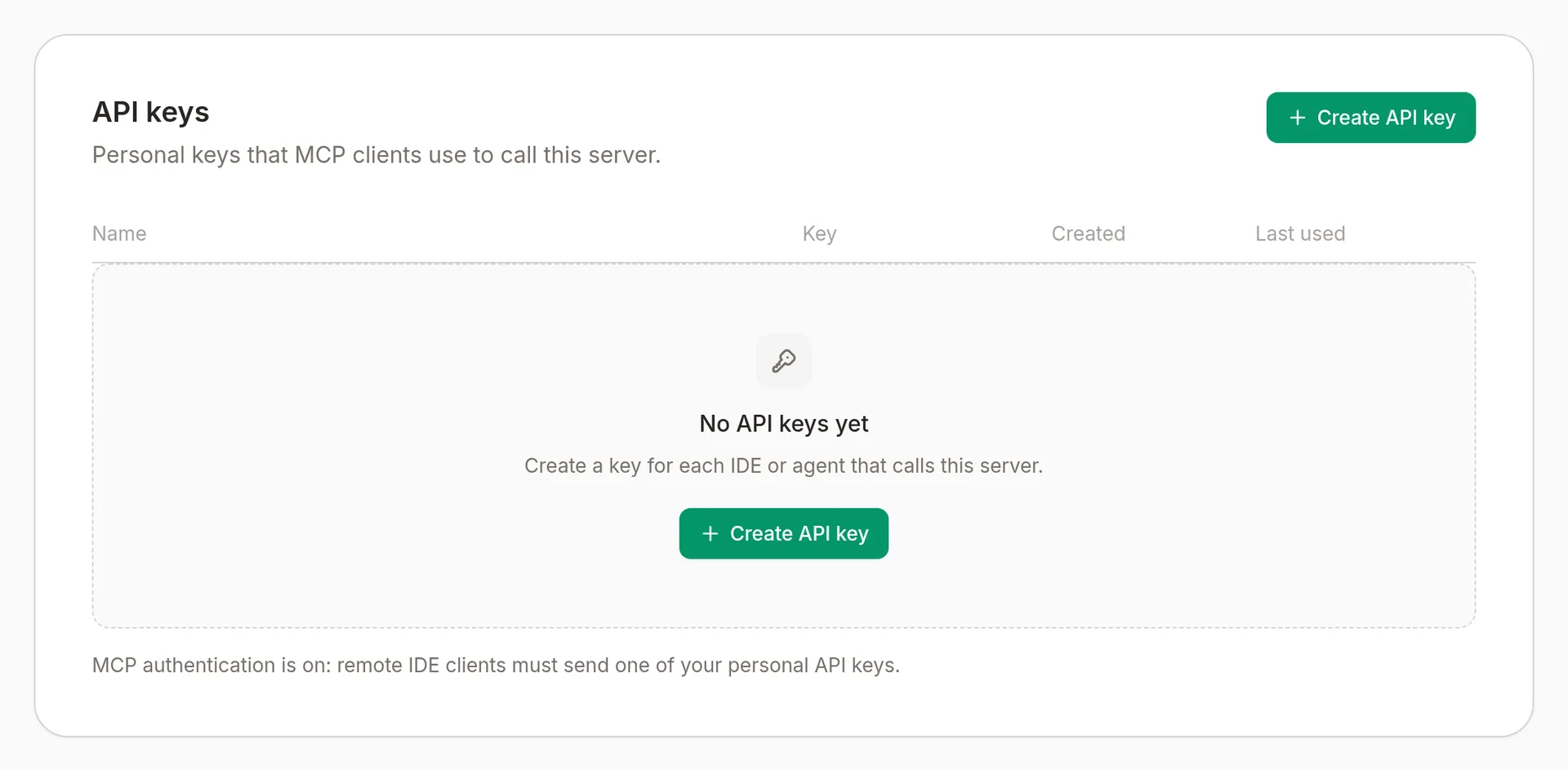
Open Personal settings
Open the account menu in the admin dashboard, choose Personal settings, and click Create API key in the API keys card.
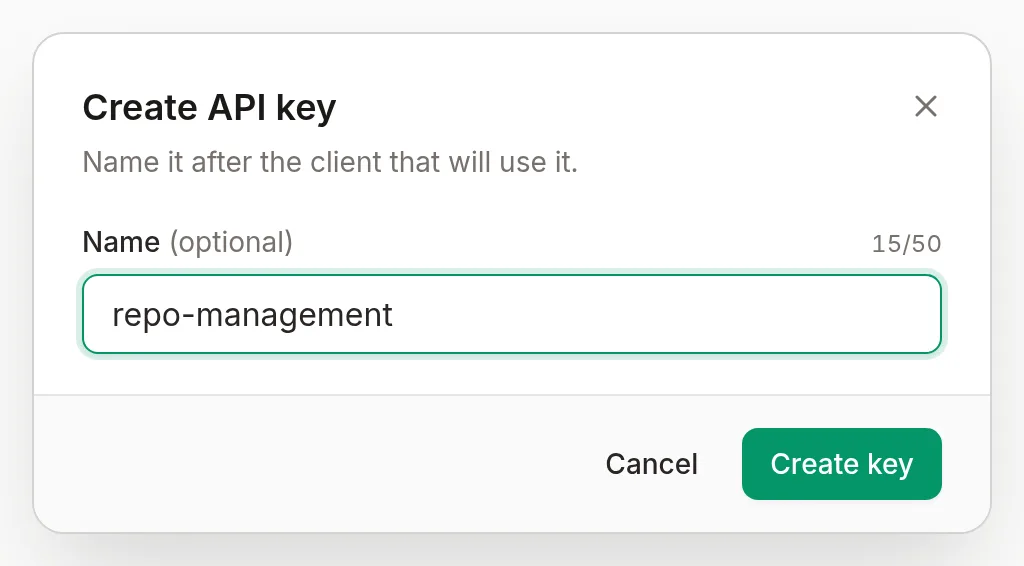
Name the key
Give the key a descriptive name so you know which client or service is using it (e.g. CI pipeline, Cursor).
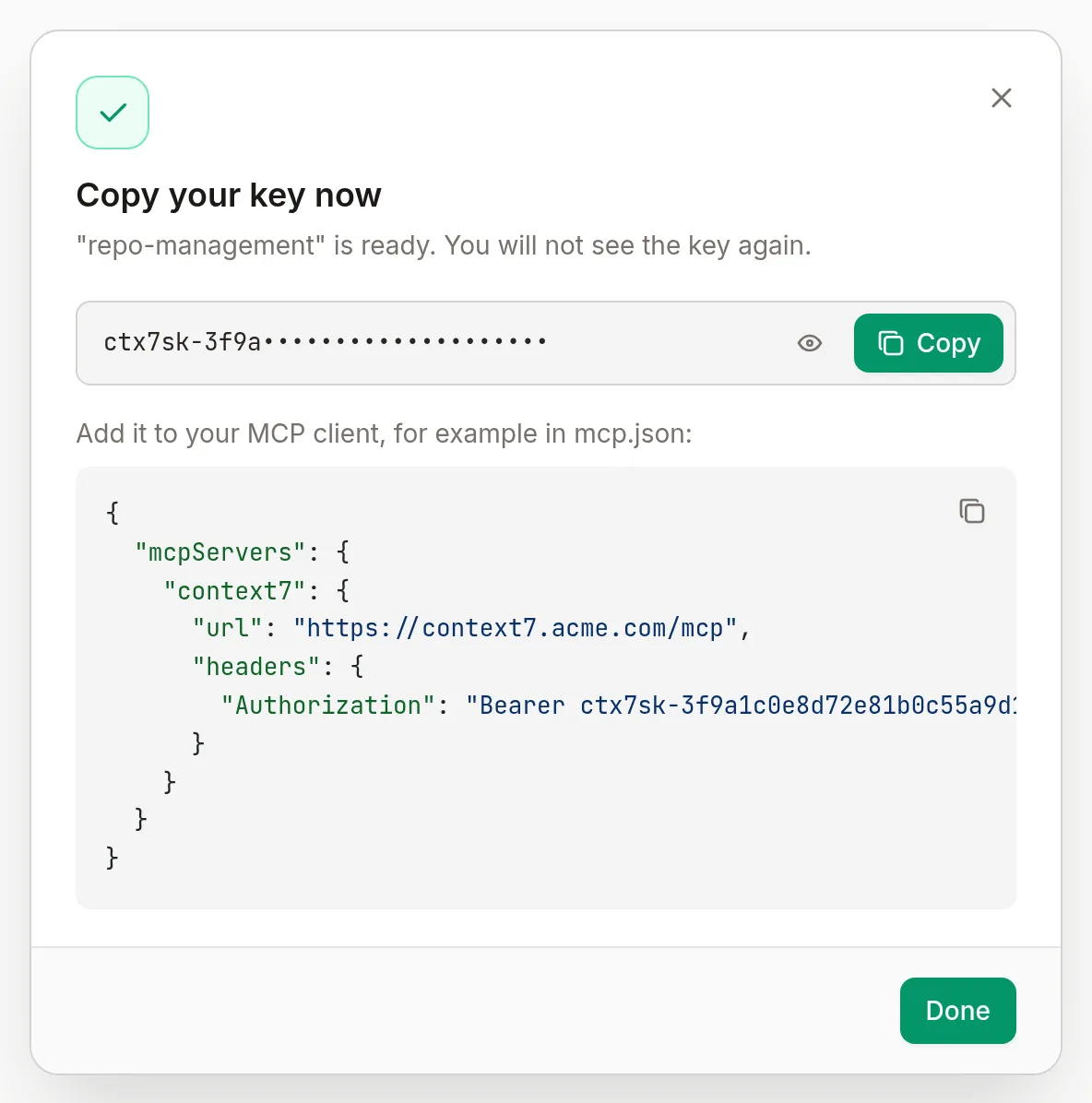
Copy the key
Copy the full key value before closing the dialog. It is only shown once.
Revoking a Key#
Go to Personal settings > API keys and click the delete icon next to the key. Revocation is immediate and cannot be undone. Update any integrations using the key before revoking.
Roles#
| Role | Access |
|---|---|
admin | Full access to all endpoints including settings, user management, and delete operations |
member | Can parse, refresh, search, and use MCP. Cannot delete libraries, cancel parses, import libraries, or access admin endpoints |
A personal API key acts with the role of its owner:
| Operation | Member key | Admin key |
|---|---|---|
| Parse and refresh libraries | Yes, if they can read an existing library | Yes |
| Refresh Notion and Google Drive libraries | No | Yes |
| Delete libraries, cancel parses, download the support bundle | No | Yes |
Import libraries (/api/import-libraries) | No | Yes |
/mcp and /api/v2 search and context | Yes | Yes |
Settings, user management, and other admin routes need an admin signed in to the dashboard. They do not accept API keys.
Default credentials on a fresh install are admin / admin. Change them immediately from Personal settings > Password > Change password.
Non-admin permissions#
Certain operations can be opened to anonymous callers (no session and no API key). Configure them in the Non-admin permissions card under Workspace Settings › Authorization:
| Permission | Default |
|---|---|
| Parse repositories | Off |
| Refresh repositories | Off |
| Delete repositories | Off |
| Download support bundle | Off |
These switches do not limit signed-in users. Members and their API keys can always parse and refresh, except Notion and Google Drive libraries, which only admins refresh. To re-parse or replace an existing library, a member needs read access to it.
The delete switch also covers cancelling a parse. When it is on, members can delete and cancel too. The support bundle switch works the same way for downloads.
Earlier versions allowed anonymous parse and refresh by default.
MCP authentication is configured separately in Workspace Settings › Authentication. When enabled, these endpoints require a dashboard session or a personal API key:
/mcp/api/v2/*, including/api/v2/libs/searchand/api/v2/contextGET /api/projectsandGET /api/projects/{name}GET /api/projects/{name}/logsandGET /api/projects/{name}/searchGET /api/queueGET /api/parse-status
When it is off, these endpoints answer anonymous callers. Library access rules still hide restricted libraries from them.
The bundled MCP server calls the v2 endpoints over loopback with a secret token. A reverse proxy on the same host therefore cannot skip MCP authentication.