

GitOps lets you keep the list of sources Context7 indexes in a Git repository, instead of adding them one by one in the dashboard. Alongside Git repositories, a source can be a Confluence space, a website, an llms.txt index, or an OpenAPI specification. Context7 reads a manifest file from that repo and reconciles its own state to match: it indexes anything new, re-indexes anything whose settings changed, and (optionally) removes anything you have deleted from the manifest.
The point is to keep your configuration in code. After a disaster, or when standing up a second environment, you point a fresh instance at the manifest repository and the entire index rebuilds itself with no manual clicks.
Before you start#
GitOps clones your manifest repository and the repositories it indexes using the Git credentials you configure under Workspace Settings › GitHub, GitLab or Other Git. Connect a GitHub App or a personal access token first; see GitHub Integration. Automatic syncs on every push require the GitHub App (a personal access token cannot receive webhooks).
If you set up the GitHub App before GitOps was available, it is not subscribed to push events and will not trigger syncs. Add the push event to the App on GitHub, or recreate it from Workspace Settings › GitHub. See GitHub Integration.
How it works#
You commit a manifest file (by default repos.yaml) to a Git repository. Context7 clones that repository using the same Git credentials you already configured in Workspace Settings (a GitHub App or a personal access token under GitHub, GitLab or Other Git), reads the manifest, and compares it against the repositories it currently has indexed.
For each source in the manifest, Context7 decides what to do:
- Add it if it is in the manifest but not yet indexed.
- Re-index it if its manifest entry changed, for example a different branch, new folder filters, or a changed page limit, or if its last indexing run did not finish.
- Leave it untouched if it already matches. Running a sync with no changes is a safe no-op.
When pruning is enabled, repositories that you remove from the manifest are also deleted from the instance. Pruning only removes repositories that GitOps manages. A repository you add by hand in the dashboard is not touched, unless the manifest also lists it. In that case the first sync adopts it: GitOps re-parses it and manages it from then on, so pruning can delete it later if you remove it from the manifest.
GitOps is the source of truth only for the repositories listed in the manifest. You can still add other repositories manually in the dashboard, and they will be left alone during a sync as long as the manifest does not list them.
The manifest file#
The manifest is a YAML file with a list of sources under repos. An optional defaults block applies to every entry unless an entry overrides it.
An entry’s type selects which parser handles it. Omit type and the entry is treated as a Git repository, so manifests written before multi-source support keep working unchanged.
Every entry needs a url (or repoUrl). The remaining fields depend on type:
type | Fields |
|---|---|
git (default) | branch, folders, excludeFolders, excludeFiles, indexSourceCode — the same options as the repository form under Add source. |
confluence | Either spaceKey (indexes the whole space; plus spaceId, Cloud only, resolved automatically from the key when omitted, and spaceName) or pageUrls (a list of page URLs to index, which may span spaces) with optional includeSubPages to also index each page’s sub-tree. Plus title and description. Set one form or the other, not both. |
website | maxPages, maxDepth, excludePatterns, title, description. |
llmstxt | maxPages, title, description. The URL must point to an llms.txt, llms-full.txt, or llms-small.txt file. |
openapi | title, description. |
Confluence entries reuse the site URL and API token you set under Workspace Settings › Confluence, so no credentials go in the manifest. Website, llms.txt, and OpenAPI sources are fetched over public HTTP and need no credentials. Configure Confluence before adding Confluence entries, or the sync reports those entries as failed.
Authority rules#
Any entry can set an authority block. It assigns authority labels to the library’s content, the same way the Authority section of the library settings does.
GitOps saves these rules also while authority labels are off, so you can prepare them before you turn the feature on. The rules change query results only after an admin turns on Enable authority labels under Workspace Settings → Access → Authority labels. The manifest declares rules only. Classes and the Enable authority labels setting stay in the dashboard.
defaultsets the library rule: a class name, orexcludedto hide the whole library.- Each item in
ruleshas exactly oneprefixorglob, and exactly oneclassorexcluded: true. - A pattern that starts with
https://orhttp://matches the page URL. Any other pattern matches the page path. - A prefix matches whole path segments:
/draftsmatches/drafts/planbut not/drafts-old/plan. - The usual precedence applies: an exclusion always wins, then the most specific rule wins.
Classes are referenced by name, without regard to case. If a name does not match a class under Workspace Settings → Access → Authority labels, the sync reports that entry as failed and names the unknown class. The sync changes none of that library’s rules, and it tries again on the next sync. Other entries still sync. If you rename a class in the dashboard, update every manifest entry that uses the old name, or those entries fail until you do.
Rules from the manifest work together with rules made in the dashboard:
- The manifest owns only the rules it created. A sync adds, changes and removes only those rules.
- The dashboard shows a GitOps badge on these rules, and you cannot edit or delete them there. Change them in the manifest.
- Rules you make in the dashboard are left alone. If a manifest rule has the same match and pattern as a dashboard rule, the manifest takes that rule over.
- Remove the
authorityblock, and the next sync deletes the rules the manifest owned for that library. - Remove the whole entry with pruning off, and the library keeps its rules, but you can edit them in the dashboard again.
- Remove the whole entry with pruning on, and the sync deletes the library together with all of its rules.
Rule changes apply on the next query. They do not re-index the library. Every change appears in the audit log with the actor gitops.
The manifest is validated strictly: an unknown type, a field that does not belong to the entry’s type (a common source of silent mistakes), or a missing required field rejects the whole sync. Nothing changes until the file parses cleanly, so a malformed manifest can never partially apply or wipe your index.
Configuring in the dashboard#
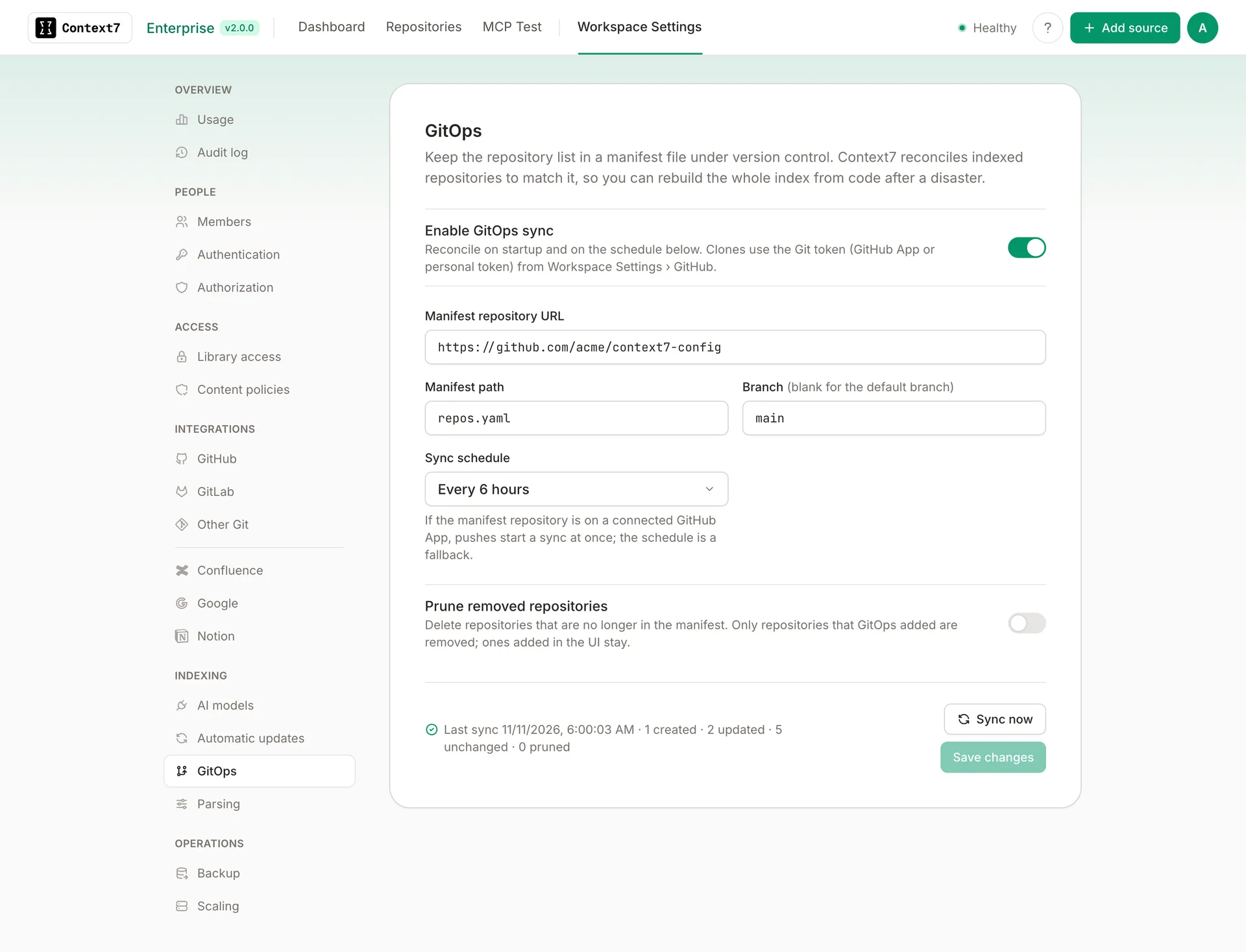
Open Workspace Settings › GitOps, fill in the manifest repository, and save.
| Setting | Description |
|---|---|
| Enable GitOps sync | Turns on automatic reconciliation (on startup, on the schedule, and on push). When off, nothing syncs automatically, but you can still run a sync by hand. |
| Manifest repository URL | The Git repository that holds the manifest. |
| Manifest path | Path to the manifest within that repository. Defaults to repos.yaml. |
| Branch | Branch to read the manifest from. Leave blank for the default branch. |
| Sync schedule | How often to reconcile automatically. Choose a preset or enter a custom cron expression. Set to Manual only to disable scheduled syncs. |
| Prune removed repositories | Delete GitOps-managed repositories that are no longer in the manifest. Off by default. |
The manifest repository is cloned with the Git credentials from Workspace Settings (GitHub, GitLab or Other Git), so private repositories work without any extra credentials. If you have not configured a GitHub App or personal access token for the host, the sync reports a clear error.
Pruning permanently deletes a repository’s indexed data (snippets and embeddings). It only affects repositories GitOps manages, including dashboard-added repositories that GitOps adopted because the manifest lists them. Treat the manifest as authoritative once pruning is on. Removing an entry and syncing will delete that library.
When syncs happen#
A reconcile runs in four situations:
- On startup. When the instance boots with GitOps enabled, it reconciles immediately. This is what makes disaster recovery a single step: bring up a fresh instance pointed at the manifest repo and the index rebuilds itself.
- On a schedule. The cron schedule you set acts as a steady fallback that keeps the instance in line with the manifest.
- On push (webhook). If the manifest repository is on a connected GitHub App, every push triggers an immediate sync. See Webhooks below.
- On demand. Click Sync now in the dashboard, or call the API, to reconcile right away.
Repeated syncs are cheap. Context7 remembers the last commit it processed and skips the work entirely when nothing has changed, and it only re-indexes a repository when its manifest entry actually differs.
Webhooks#
When the manifest repository is served by the GitHub App, every push to its configured branch triggers an immediate sync, with no CI step required. Pushes to other repositories or other branches are ignored.
Webhook delivery requires the GitHub App, an instance reachable from GitHub, and the App subscribed to push events. See GitHub Integration for setup, including what to do if you connected the App before push support existed. With a personal access token instead of the App, webhooks are unavailable; use the sync schedule or have CI call the reconcile endpoint.
Disaster recovery#
Because the repository list lives in Git, rebuilding an instance does not require restoring it from a backup. Stand up a fresh Context7 instance, configure your LLM and Git credentials, enable GitOps with the manifest repository URL, and start it. On boot it reads the manifest and re-indexes every listed repository. Your configuration is reproducible from code.
API#
The same operations are available over the REST API and require an admin API key.
To propagate a manifest change from CI immediately (for example when you are not using a GitHub App), call the reconcile endpoint after merging:
The response reports what the sync did, including how many repositories were created, updated, left unchanged, pruned, and skipped, how many authority rules changed, and any per-entry errors.